
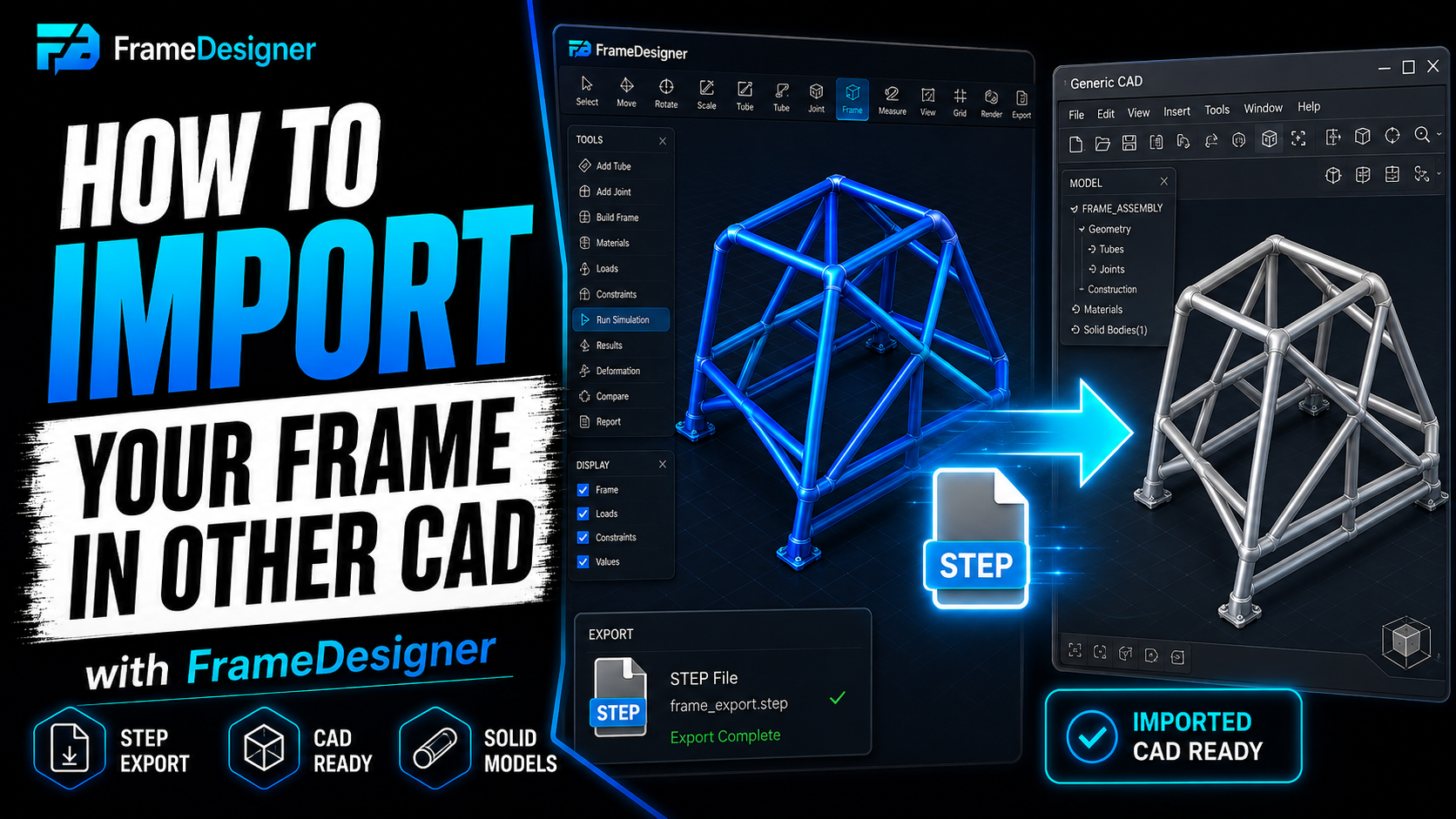
FrameDesigner does one job. Once the tube structure is settled, the project usually carries on somewhere else — brackets, bodywork, panels, a full assembly, drawings for a fabricator who wants them a particular way.
That handoff works fine, provided you pick the right format and know what each one throws away.
Solid or mesh
Every format falls into one of two groups and the distinction matters more than any file extension.
Solid formats — STEP being the one that matters — describe real geometry. Faces, edges, volumes, defined mathematically. A cylinder is a cylinder. You can measure it exactly, mate to it, cut it, put a bracket on it, run mass properties. This is what you want if the project continues as engineering.
Mesh formats — STL, OBJ — describe surfaces as a lot of triangles. A cylinder becomes a 64-sided prism. Fine for visualisation, 3D printing and clash checking. Infuriating for anything needing exact geometry, because there's no true cylindrical face to reference. You'll try to put a concentric mate on it and discover you're mating to one flat facet.
Default to STEP. Reach for a mesh only when the destination actually wants one — a printer, a renderer.
What survives the trip
Exported geometry carries shape. It does not carry the thinking behind the shape.
Tube solids arrive with their notches reconstructed. Bent members arrive as real swept geometry. Positions and orientations hold. What doesn't come across is everything that made the model editable: joints as logical entities, symmetry relations, bend sequences, the parametric link between a member and its neighbours.
So the export is a snapshot, not a live link. Change the frame and you re-export. You don't patch the CAD copy — or rather you can, and then the two models disagree and you've created a problem for yourself three weeks out. Keep FrameDesigner as the source of truth for tube structure and treat the CAD assembly as downstream of it.
Four checks on import
Don't assume a clean transfer. These catch nearly everything:
- Units. Measure one known dimension immediately, before anything else. A frame that arrives at 1/25.4 scale is a unit mismatch, and it's far easier to deal with now than after you've modelled three brackets around it.
- Solidity. Confirm the tubes came in as solid bodies and not surfaces. Some translators produce open shells that look identical on screen and refuse every boolean and every mass property.
- Body count. Compare against your member count. A dropped member, or two members fused into one body, shows up here and nowhere else.
- Notch geometry. Look hard at a few joints, especially where a bent member lands on a straight one. Compound notches are the most demanding geometry in the file and the first thing to degrade in translation.
Notes by destination
STEP import is well supported everywhere, but the details differ. Most packages offer a choice between importing as one multi-body part or as an assembly of separate parts. For a frame, take the assembly — each tube stays independently selectable and you can give members names that mean something, which you'll want the first time you need to find "the left rear stay" in a tree of 40 bodies.
If a bent member arrives faceted instead of smooth, something in the chain tessellated it. Re-export as STEP rather than trying to repair the geometry downstream; downstream repair of a tessellated sweep is not a good use of an evening.
For drawings, remember that a notched tube end is horrible in orthographic projection. A fabricator is almost always better served by the flat notch templates and the per-member cut data than by an isometric view of the same joint, however nicely you dimension it.
Keeping both models honest
The long-project failure is drift. The CAD assembly and the frame model slowly stop agreeing and nobody notices until a bracket is 6 mm out.
Two habits prevent it. Re-export after any change to the tube structure rather than editing tubes in CAD. And keep the portable project file sitting next to the exported CAD, so the editable source never gets separated from the snapshot taken off it.
Comments
Loading comments…