
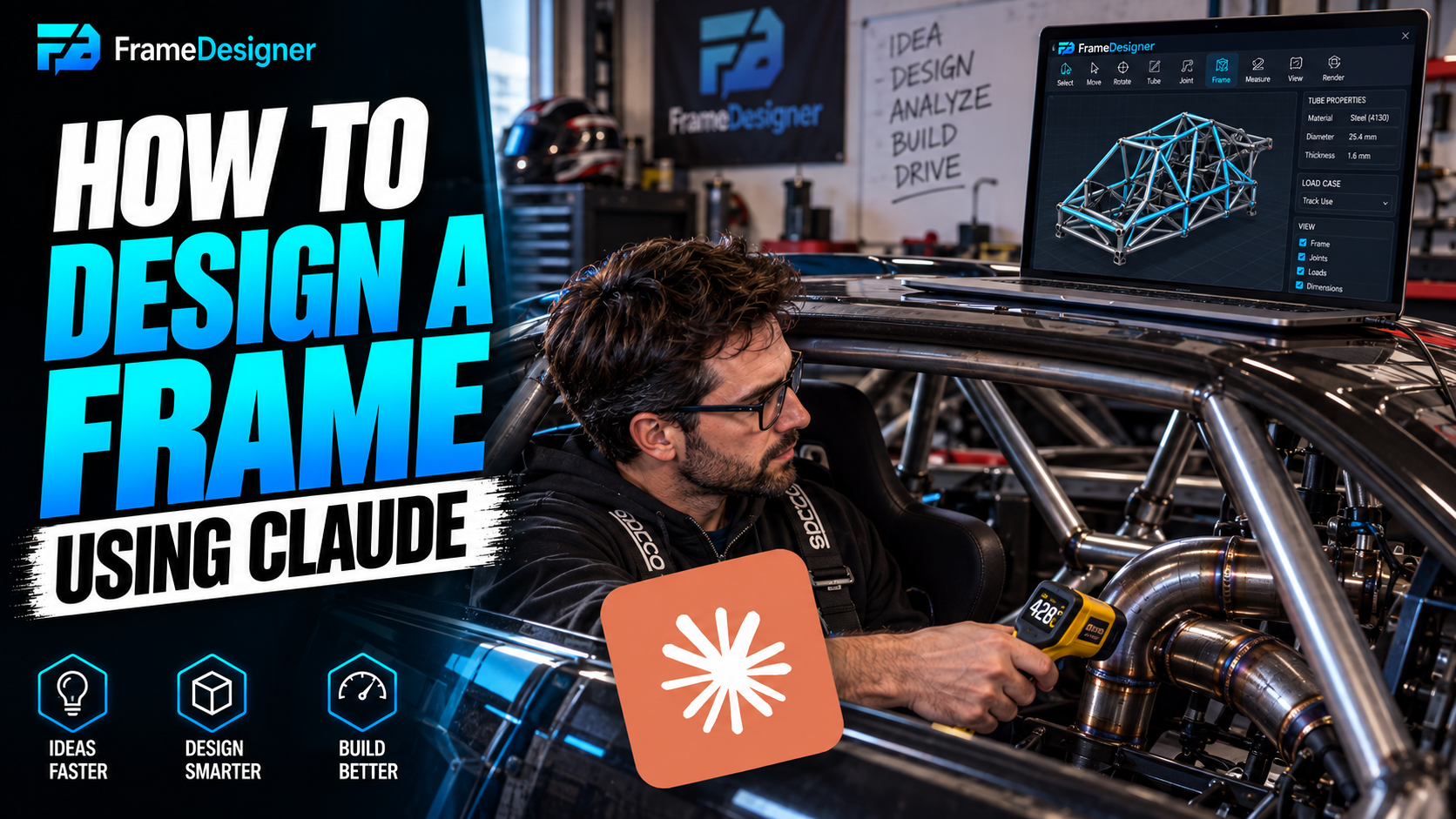
Placing forty joints by hand to build a ladder frame is a lot of clicking before you get to any part that needs judgement.
FrameDesigner can connect to an AI assistant, so you can describe the structure and have the geometry built for you. What comes back is a real project — real joints, real members, editable exactly like something you drew yourself. Nothing downstream knows the difference.
What it's good for
It removes tedium. It does not remove judgement, and it's worth being clear-eyed about which is which.
It works well on structures with describable regularity. A rectangular base frame with stated dimensions and cross-members at intervals. A ladder frame. A box section. A starting layout you fully intend to tear up. Anything where the rule is easy to state and the execution is repetitive.
It works badly on structures whose shape is determined by things that are hard to put in words — following a body contour, packaging around one specific engine, threading a tube between two existing components with 12 mm to spare. Those still want the reference model in front of you and your own hands on it.
Describing something usefully
Geometry quality tracks description quality, closely. Vague in, vague out.
Specify:
- Overall dimensions with units. Say millimeters or inches explicitly. Don't leave it to be inferred.
- Tube profile and size — diameter and wall, or say you want the default.
- Where members go, including spacing for anything repeated like cross-members or uprights.
- Symmetry, if the structure should have it.
- Orientation, so it arrives the right way up relative to the axes you're working in.
Compare these two. "A rectangular base frame 2000 mm long by 1200 mm wide in 30 mm round tube with 2 mm wall, three equally spaced cross-members, and 600 mm uprights at each corner" gets you something specific. "A frame for a buggy" gets you a shrug in geometry form.
Iterating
Treat the first result as a draft. Describe, look, ask for a change, look again.
Some refinements are much easier to ask for than to perform. Moving every cross-member. Changing the profile across a whole group of tubes. Adding diagonals in one plane. Mirroring a section that already exists. These are precisely the operations that are tedious by hand, so this is where the loop pays.
At some point it stops being efficient and direct editing is quicker. That point arrives when the changes you want are specific to individual joints rather than general rules — when you're saying "that one, 4 mm left" instead of "all of them, 40 mm apart."
Check it like you'd check your own work
Generated geometry is a starting point, not a verified design. Check the dimensions. Check the joints resolved sensibly, particularly anywhere three members meet. Run the same clearance and simulation checks you'd run on anything you drew yourself.
The engineering responsibility doesn't transfer anywhere. It stays with you, exactly as it would if you'd placed every joint by hand.
Where it sits in the workflow
Generate the regular skeleton, then do the interesting part by hand.
Ask for the base structure using the dimensions you already know. Import your reference models. Then move joints to suit the real packaging constraints, add the bracing the simulation asks for, convert corners to bends where it's worth it, and generate the fabrication data.
Everything downstream is unchanged — the joints are real joints, the notches calculate normally, the fabrication output is the same output. The only thing that moved is where you started from.
Comments
Loading comments…